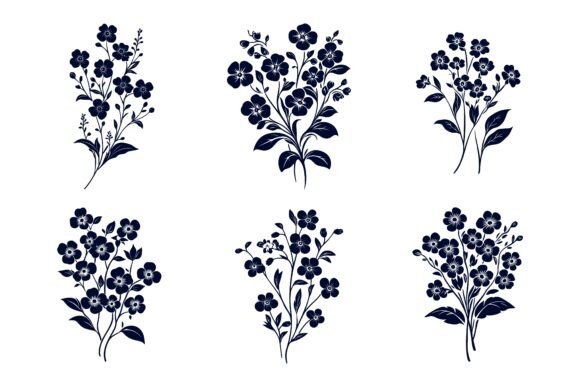
Abstract Vintage Flowers: Getting the Most from Your AI and EPS Illustration Collection
Abstract vintage flowers have a way of softening a design without making it feel dated. They carry just enough nostalgia to feel warm and familiar, yet their abstract quality keeps them versatile across modern branding, editorial layouts, wedding stationery, social media graphics, and even app interfaces. If you have come across an AI EPS collection that promises neatly organized files, easy color changes, and cross-platform compatibility, you are probably wondering whether it can actually deliver on those claims—and more importantly, whether you will know how to use it properly once you download it.
The truth is that owning a well-structured vector set is only half the equation. The other half is understanding how to handle those files, avoid common editing missteps, and adapt the artwork to your specific project without compromising quality. Many people purchase illustration sets with high expectations, only to feel frustrated because they overlooked a few critical details before and after downloading. Let us walk through what really makes an abstract vintage flowers collection useful and where things tend to go wrong if you are not careful.
What Makes Abstract Vintage Flowers Different from Standard Floral Vectors
Abstract vintage flowers are not your typical photorealistic blooms or generic clip-art roses. They tend to favor simplified petal shapes, muted or earthy color palettes, gentle curves, and a hand-drawn or slightly imperfect aesthetic that evokes early 20th-century botanical prints, mid-century textile patterns, or retro greeting card illustrations. Designers gravitate toward them because they can add personality to a project without overwhelming the main message. A tech startup might use a single abstract vintage bloom as a subtle accent on a landing page, while a small bakery could build an entire brand identity around a bouquet of these illustrations on packaging and menus.
The appeal lies in their flexibility. Unlike hyper-realistic florals that demand a specific context, abstract vintage flowers can sit comfortably in a minimalist logo, a bohemian wedding invitation, a wellness blog header, or even an infographic about sustainability. Their stylized nature means they adapt to both playful and sophisticated tones, depending on how you color, scale, and arrange them.
The Most Overlooked Detail When Downloading AI and EPS Files
One of the first mistakes people make happens seconds after purchasing an illustration set. They see the file list—AI, EPS, JPG—and immediately open whichever format their computer suggests by default. On a Mac, that might be Preview for the JPG; on Windows, it could be Photos or Paint. The problem is that the AI and EPS files are the ones that contain all the editable vector data, and if you do not have the right software installed, you may not even realize what you are missing.
Adobe Illustrator is the native application for AI files, and it also opens EPS files smoothly. If you do not have an Adobe Creative Cloud subscription, you might assume you cannot use the files at all. That is not necessarily true. Applications like Affinity Designer, CorelDRAW, Inkscape, and even some newer web-based editors can import EPS and sometimes AI files. However, compatibility is not always perfect. Layers may flatten, effects might break, and text elements could convert to outlines or disappear entirely. Before purchasing any vector collection, confirm which file formats are included and test whether your preferred software can handle them without unexpected losses.
Another overlooked aspect is how the JPG preview relates to the vector originals. Some buyers download the set, glance at the JPG, and think that is the extent of what they bought. They might even use the JPG in a project, scaling it up and noticing pixelation, never realizing the crisp, infinitely scalable vector version is sitting right there in the same folder. If you have ever accidentally placed a low-resolution raster image into a print design, you know how costly that mistake can look on the final product.
Why Layer Organization Matters More Than You Think
A collection described as having a "neatly organized file and layer structure" is not just a marketing phrase. It genuinely affects how efficiently you can work. Imagine opening an EPS file and finding every petal, stem, leaf, and background element crammed onto a single layer with no meaningful names—just "Path 1," "Path 2," and so on. Isolating one flower to change its color becomes a tedious game of hide-and-seek. You waste time clicking through dozens of unnamed objects, guessing which one corresponds to the element you want to edit.
Well-organized layers, on the other hand, let you quickly locate specific flowers, recolor entire groups in seconds, hide elements you do not need, and export variations without starting from scratch. If you are working on a tight deadline, that organization can mean the difference between delivering a polished project and scrambling at the last minute. Before buying any vector set, look for evidence that the designer has thoughtfully grouped and labeled elements. Some creators include screenshots of their layer panels in the product description. If they do, study them. If they do not, it may be worth reaching out to ask about the file structure.
Color Editing: Where Beginners Often Get Stuck
One of the strongest selling points of an AI EPS collection is the ability to change colors and modify icons easily. In theory, this is straightforward. In practice, many newer designers encounter a frustrating obstacle: global swatches, gradients, and compound paths. When you open a file and try to click on a flower to change its fill color, you might find that nothing happens, or only part of the shape changes. This often occurs because the flower is not a single shape but a compound path or a group containing multiple overlapping elements, some of which use gradient fills that do not respond to a simple color swap.
Rather than fighting the file structure, take a moment to explore how the artwork is built. Open the Layers panel, expand groups, and use the Direct Selection tool to understand which paths connect to which visual elements. If a flower uses a gradient that you want to turn into a solid color, you can often select the gradient-filled object and convert it. If the entire illustration relies on global color swatches, changing one swatch can update every instance of that color across the whole document—an enormous time-saver when you are experimenting with different palettes. The key is patience and a willingness to learn the file's internal logic rather than assuming it will behave exactly like simpler vector art you may have edited before.
Choosing Between Print and Web Applications
The same abstract vintage flower that looks gorgeous on a screen at 72 PPI can turn into a muddy mess in print if you are not mindful of color modes and resolution. Vector files are resolution-independent, which means they will stay sharp at any size—postcard or billboard. But the color mode embedded in the file matters. Files set up in RGB mode are ideal for digital projects but may shift unpredictably when printed on a commercial press. Conversely, CMYK files may look slightly duller on screen but will print more accurately.
A practical approach is to decide early whether your project is primarily for digital use, print, or both. If you are designing a website header and social media graphics, RGB is your friend. If you are preparing wedding invitations or product packaging, work in CMYK from the start. Many vector illustration sets provide files in one color mode, and it is your responsibility to convert and adjust as needed. Before sending anything to a print shop, soft-proof the colors and, if possible, order a printed sample. What you see on your monitor is rarely an exact match for what comes off the press, especially with vintage-inspired tones that often rely on subtle warmth and muted saturation.
Licensing Misunderstandings That Can Cost You
Even the most beautiful abstract vintage flowers collection can become a liability if you misuse it due to unclear licensing. Some buyers assume that purchasing a file grants them unlimited commercial rights. In reality, many illustration sets come with specific terms: personal use only, extended commercial licenses required for merchandise, restrictions on reselling the artwork as-is, or limits on the number of end products. Skimming past the license details because they seem tedious is a mistake that can lead to legal trouble or having your work taken down from platforms where you sell physical or digital goods.
Read the license terms carefully. If the product page does not clearly state what is allowed, ask the creator before buying. Reputable designers appreciate informed customers and are usually happy to clarify. Once you have confirmed your usage rights, keep a copy of the license file and any correspondence in your project folder. That way, if a question ever arises, you have documentation ready.
How to Vet a Collection Before You Commit
It is tempting to hit "Buy Now" the moment you see a preview image that matches your vision. But doing a little homework beforehand can save you from disappointment. Look closely at the product images. Are they showing you actual vector previews, or only styled mockups that obscure the true level of detail? Mockups can make even mediocre artwork look stunning when placed on a textured background with realistic shadows. Try to find images that show the illustrations in isolation, preferably with zoomed-in sections so you can assess the quality of curves, anchor points, and line consistency.
Check whether the collection includes each flower as an individual file or only as a single combined composition. If you plan to use these illustrations across multiple projects, having separate files for each element gives you far more flexibility. Also, confirm that the download includes well-organized folders rather than a chaotic dump of files with cryptic names. These small structural details reveal how much thought the designer put into making the product genuinely usable, not just visually appealing.
Integrating Abstract Vintage Flowers Without Making Your Design Feel Generic
One of the quiet risks of using any popular illustration set is that your project can end up looking like a template. Abstract vintage flowers are widely loved, which means other designers and business owners are using similar assets. To avoid a cookie-cutter result, think about how you can personalize what you have downloaded. Instead of using the exact colors provided, develop a palette that aligns with your brand or the specific mood you want to evoke. Layer the flowers with your own typography, photography, or hand-drawn elements. Crop compositions in unexpected ways so the flowers become a supporting detail rather than the entire visual identity.
For example, a freelance photographer might take a single abstract vintage bloom from the collection, recolor it in a muted terracotta tone that matches her logo, and use it as a subtle watermark on her portfolio images. A small coffee roaster could take the same flower, adjust it to a deep espresso brown, and pair it with bold sans-serif type for a label that feels both handcrafted and modern. The illustration set is a starting point, not the finished design. The more you make it your own, the more professional and distinctive your work will appear.
What to Do When Files Do Not Behave as Expected
Occasionally, you will open a vector file and something will seem off. Colors may look wrong, some elements might appear jagged instead of smooth, or parts of an illustration could be missing altogether. Before assuming the file is defective, check a few things. First, confirm that you are viewing the artwork in outline or wireframe mode to see if hidden objects are causing clutter. Second, verify that your software fully supports the file version. Older EPS formats can be particularly finicky in newer applications. Third, if you are converting between color modes, understand that some shifts are inevitable and can be manually corrected.
If problems persist, reach out to the designer. Most creators want their customers to have a positive experience and will offer guidance or updated files if legitimate issues exist. A professional response to a polite inquiry is a good sign that you bought from someone who stands behind their work.
Making the Right Choice for Your Next Project
Abstract vintage flowers in a well-crafted AI EPS collection can genuinely elevate your creative work, whether you are designing for a client, promoting your own business, or crafting something personal. The key is to approach the purchase and the editing process with realistic expectations and a bit of technical awareness. Know which software you will use, confirm the file formats and layer structure, understand your licensing rights, and be ready to invest a little time in learning how the artwork is constructed. Those steps do not take long, but they make the difference between a frustrating experience and a satisfying one.
When you find a set that is thoughtfully organized, compatible with your tools, and aligned with your visual direction, the possibilities open up quickly. You can adapt the same illustration for a website banner, a printed flyer, a mobile app icon, and an infographic—all while maintaining consistency and quality. That kind of versatility is exactly what makes a strong vector collection worth having in your creative toolkit.