News Media Icons: Common Pitfalls That Can Undermine Your Visual Projects (And How to Avoid Them)
When every pixel counts, the icons you choose can either amplify your message or quietly erode your credibility. A police scanner graphic that looks blurry on a mobile screen, a television icon that changes weight depending on the background, or a microphone symbol that just feels off — all of these tell your audience that you didn't pay attention to detail. News media icons deserve the same scrutiny as your headlines and brand colors. Many creators, from small business owners to seasoned designers, still download the first pack that shows up in a search, only to discover missing vector files, unchangeable strokes, and a licensing mess they never saw coming. This article walks you through the most common missteps and shows you how to select a versatile, high-quality news media icon set that actually works across websites, apps, infographics, flyers, and beyond.
Treating All News Icon Sets as Interchangeable
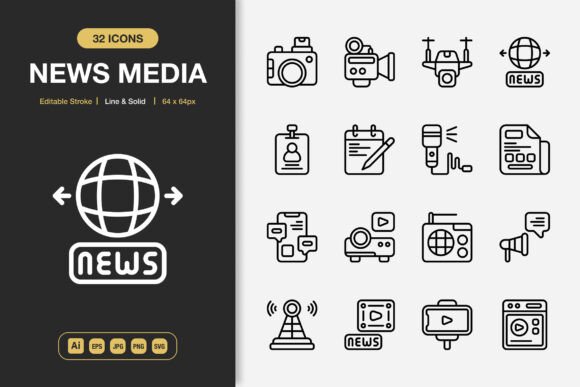
The biggest oversight? Assuming any icon labeled “news” will look cohesive with your existing design. You might grab a free outline‑style satellite dish, then pair it with a solid‑style press badge from a completely different library. The dish has a delicate 1px stroke, while the badge is heavy and filled. Your layout suddenly feels jarring, and the reader’s eye stumbles. A well‑built news media icons collection avoids this by offering both line and solid styles within the same family. That means the geometry, corner radius, and line weight stay consistent whether you choose the outlined broadcast tower or its filled counterpart. This isn’t just about aesthetics — it’s about functional hierarchy. Use the line style for subtle navigation cues and the solid versions for urgent alerts or active states, and the transition feels intentional. Before you commit to a pack, open its preview and place a line icon next to a solid one. Do they look like siblings, or like distant cousins? If it’s the latter, your branding will suffer.
Ignoring Editable Stroke and True Vector Scalability
One of the most costly habits is treating a high‑resolution PNG as “good enough.” You drop a news van icon into a landing page, and it looks great on your screen. Then the project moves to a large‑format poster or a retina display, and the edges turn soft. Suddenly you’re hunting for the original source file that you never had. Professional news media icon sets include true vector formats — Adobe Illustrator (.ai), EPS (version 10), and SVG — with editable strokes. This isn’t a luxury; it’s essential. With an editable stroke, you can change a 1pt line to a 2.5pt line to match your typography’s weight or thicken a thin icon for a dark background where fine details get lost. The EPS file acts as a reliable interchange if you work in an older design suite, while the SVG can be dropped directly into code and recolored with CSS. Before downloading, check the file list carefully. Look for “Editable Stroke” in the description. A pack that only offers JPG and flat PNG files, no matter how high quality, limits you from the start. Always open the .ai or .eps file and try to ungroup and modify a stroke width. If you can’t, you’ve just trapped your design.
The “Easy Drag and Drop” Trap That Slows You Down
“Easy drag and drop” is a genuine time‑saver — until it becomes an excuse to skip customization. The default icon color might be pure black, while your brand palette relies on warm charcoal and crimson. Without adjusting the PNG you dragged in, the icon looks like an afterthought. Worse, the same black tone might hide against a dark‑mode interface or clash with a vibrant infographic background. The better path: treat the drag‑and‑drop feature as a preview, not the final result. For web projects, grab the SVG from the set and inline it. Then you can control the fill and stroke via CSS, enabling hover effects that react to user interaction. For print, open the Adobe Illustrator source file, select the icon, and match its color to your brand swatch in seconds. Because this collection includes 100 customizable elements, you’re never stuck with a fixed look. Taking an extra 90 seconds to recolor and perhaps simplify a detail transforms a generic asset into something that feels bespoke.
Skipping the Readme.txt and Licensing Pitfalls
It’s a tiny text file, often ignored. But the readme.txt holds answers you’ll wish you had when a client asks about logo usage or a print‑on‑demand partner demands proof of commercial rights. One painful mistake is assuming every downloadable icon is free for all commercial purposes. Some sets restrict resale as standalone assets, others require attribution, and a few explicitly prohibit use in templates you plan to sell. This particular news media icons pack is positioned as suitable for “any project,” but the readme is your binding agreement. Check for statements about personal versus commercial use, whether the icons can appear in software interfaces, and if modifications to the source file are allowed. If you’re designing a book cover or a conference poster, reproduction limits matter. The included PNG transparency files might be cleared for web but not for merchandise. Five minutes spent reading the readme prevents an email from a legal team months later.
Breaking Visual Cohesion by Chasing Variety
More isn’t always better. You download one set for camera icons, another for weather graphics, and a third for social media symbols. Soon your mobile app’s dashboard looks like a rummage sale of styles. The news media icons you choose should feel like part of a deliberate system. When a pack offers line and solid style with a consistent visual language, you can mix them without breaking the illusion. The stroke weights, the amount of detail, even the way corners are rounded — all these micro‑decisions stay uniform. Before importing, decide on a primary style. If your blog uses a light mode, outline icons with a 2px stroke might serve as your baseline, and you can pull in solid versions only for “breaking news” labels or call‑to‑action buttons. Because the set is designed cohesively, the switch feels natural. When you spot an icon that doesn’t match, you’ve likely dragged in something from an unrelated folder. Keep a reference artboard with your chosen core style icons and always check new additions against it.
Forgetting Real‑World Testing Across Surfaces and Sizes
An icon that gleams on a digital artboard can dissolve against a busy photograph or shrink into an unrecognizable smudge at 16×16 pixels. Many creators skip testing, then discover the problem after launch. With a news media set that includes JPG files and SVG files with transparency, you have all the tools to simulate real conditions. Place your chosen icons on the exact backgrounds they’ll live on — a wooded hero image for an environmental news site, a dark footer, a bright yellow alert bar. If a line icon becomes illegible, switch to the solid alternative or use the editable stroke feature to beef up the weight. For a favicon or a small app badge, test at the smallest intended size. A detailed newspaper icon might need a simpler silhouette at that scale. The vector formats (EPS and SVG) guarantee crisp edges, but the icon’s recognizability depends on the design itself. Run your tests before finalizing layouts. The satisfaction you save is immeasurable.
Mistaking “High Quality” for “Right for My Audience”
Technical quality means clean anchor points, smooth curves, and proper file exports. But even a technically flawless news microphone icon can feel cold and corporate to a community‑focused podcast audience, while a hand‑drawn‑style press hat might look too casual for a financial news app. Don’t let the high quality label short‑circuit your own judgment. Preview the JPG or browse the SVG thumbnails. Ask: does the icon match the tone of my content? Is the metaphor obvious? A younger demographic might connect with a trending hashtag icon, whereas a heritage newspaper might need a printing press or typewriter symbol. A well‑rounded news media icons set provides breadth, so you can select symbols that align with your audience’s expectations. Use the ones that reinforce your narrative, and leave the others for a future project. A mismatch between icon personality and brand voice is a subtle credibility drain, but it’s entirely avoidable.
Disorganized Files That Sabotage Your Workflow
You download a zip containing Source File Adobe Illustrator, EPS Version 10, JPG, SVG, PNG Transparency, and the readme. Six months later, you need to resize a television icon for a banner, but you can’t locate the .ai file among hundreds of unsorted assets. The promise of easy drag and drop evaporates when you’re on a tight deadline and the editable stroke source is buried. Create a folder named “News Media Icons” and subfolders for each format. Store the Adobe Illustrator file as your master — it’s the most flexible for global changes. Back it up, because accidental overwrites happen. The EPS version 10 serves as a reliable fallback for cross‑software compatibility. The SVG folder becomes your web development go‑to, and the PNG folder is perfect for quick social media drafts or presentations. Duplicate the readme.txt into a “Licensing” folder for instant reference. A little upfront organization prevents the frustration of re‑downloading and re‑exporting assets late at night.
What to Check Before You Commit
Before you use any news media icons pack in a client project or your own business, run through a practical checklist. This avoids the most common regrets and ensures the set will actually support your workflow, not hinder it.
- Does the pack include both line and solid style variations? This dual nature future‑proofs your designs and gives you flexibility for dark mode, hover states, and infographic layouts.
- Are the source file formats true vectors? Confirm you’re getting Adobe Illustrator (.ai), EPS, and SVG — not just a high‑res PNG masquerading as fully editable. Open one to check for editable strokes.
- Is the readme.txt present and clear about licensing? Skim for commercial use, resale, and attribution terms. The phrase “suitable for any project” is promising, but verify.
- Are the PNGs and JPGs high quality with clean transparency? Look for 300ppi resolution and no jagged edges on the alpha channel, especially around rounded shapes like a globe or clock icon.
- Can you truly customize the 100 icons? Some bundles lock elements together. Test an icon from the preview: can you change its color, adjust the stroke, or remove a detail to simplify it?
- Does the set provide an easy drag and drop experience without sacrificing depth? The best packs let you prototype quickly with PNGs and then refine with the SVG or AI files for final delivery.
When you take the time to choose a news media icons collection that checks every box, your projects gain a quiet professionalism that generic clip art can’t match. A cohesive visual language built on a solid set of icons — whether you’re designing a mobile news reader, a journalist’s business card, a social media banner, or a 20‑page printed magazine — communicates competence before the reader even processes a single headline. You avoid the wasted hours of reformatting, the pixelation surprises, and the licensing anxiety that plague rushed decisions. Instead, you get a toolkit that grows with your brand and makes your next campaign faster to execute and stronger in its impact.